How to Embed an RSVP Form on Squarespace
Add a fully customizable RSVP form to your Squarespace site in under 5 minutes. Works with any template.
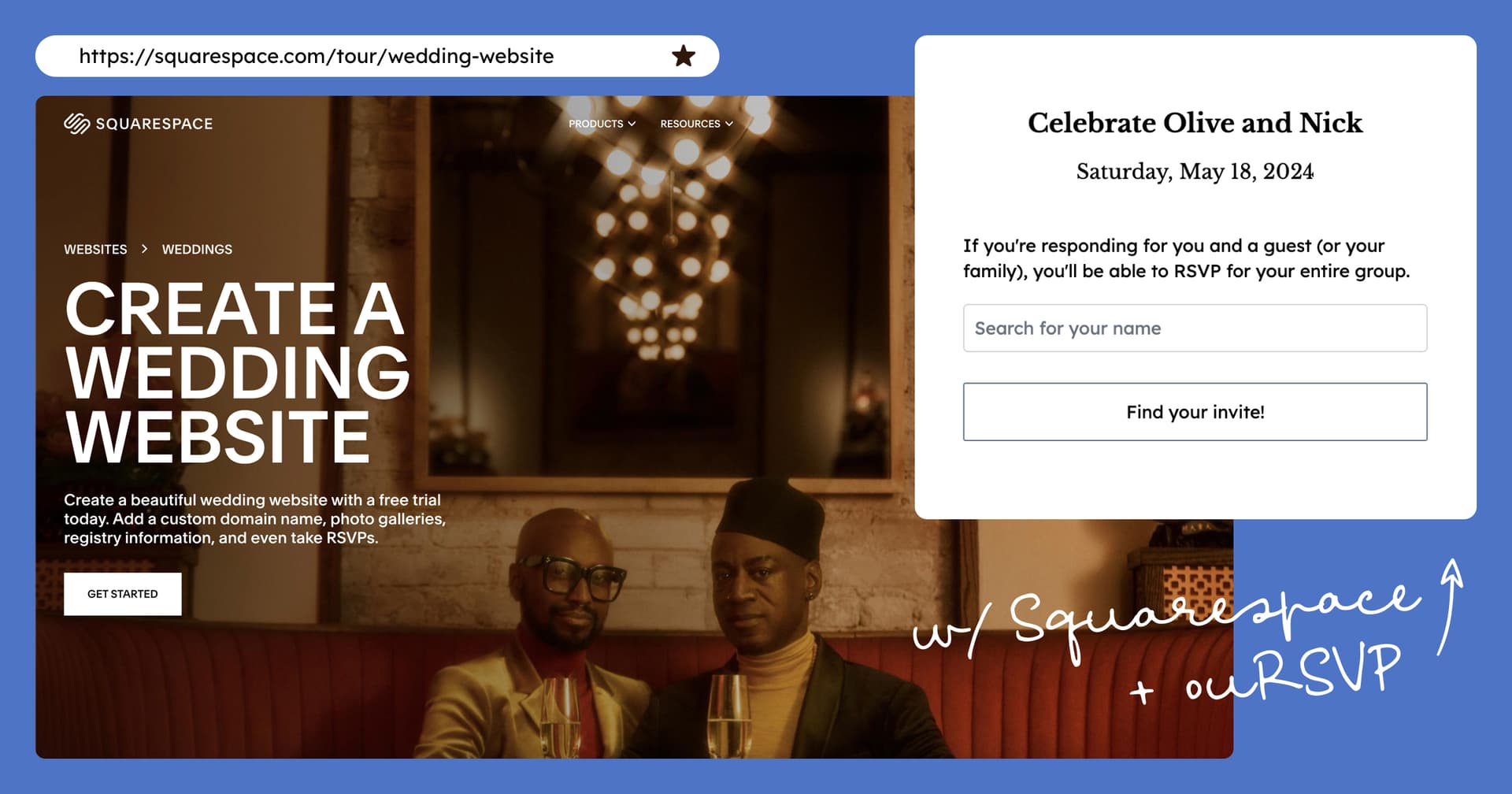
Why Add an RSVP Form to Your Squarespace Site?
If you've built a custom wedding website on Squarespace, you know how important design is. The last thing you want is to send guests to a separate, generic RSVP page that doesn't match your carefully crafted aesthetic.
With an embedded RSVP form, your guests can respond directly on your site — no redirects, no jarring design changes, no confusion. Everything stays on-brand and seamless.
Unlike Squarespace's built-in form blocks (which just collect submissions), a dedicated RSVP tool like ouRSVP gives you guest management, meal selections, plus-ones, custom questions, and a dashboard to track everything in real time.
What You'll Need
- →A Squarespace website (works with both 7.0 and 7.1)
- →An ouRSVP account with your event created
- →Your embed code snippet (found in your ouRSVP dashboard)
Note: Squarespace's embed blocks work on all plan levels. No Business or Commerce plan required.
Step-by-Step Instructions
Navigate to Your RSVP Page
Open your Squarespace site editor and navigate to the page where you want your RSVP form to appear. This is typically a dedicated "RSVP" page, but you can add it anywhere — your homepage, a details page, or even in a footer section.
Add an Embed Block
Click the + (Add Block) button where you want the form. In the block menu, scroll down to "Embed" and select it. You can also search for "embed" in the block search bar.
Open the Code Editor
Click on your new embed block and select "Code Snippet" (not URL or oEmbed). Then click "Embed Data" to open the code editor.
Paste Your ouRSVP Code
Copy your code snippet from your ouRSVP dashboard and paste it into the code editor:
<div id="rsvp-widget"></div>
<script>
  (function (w, d, s, o, f, js, fjs) {
    w[o] = w[o] || function () { (w[o].q = w[o].q || []).push(arguments) };
    js = d.createElement(s), fjs = d.getElementsByTagName(s)[0];
    js.id = o; js.src = f; js.async = 1; fjs.parentNode.insertBefore(js, fjs);
  }(window, document, 'script', 'oursvp', 'https://www.oursvp.app/widget/widget.js'));
  oursvp('init', {
    element: document.getElementById('rsvp-widget'),
    eventId: 'YOUR_EVENT_ID'
  });
</script>
The <div id="rsvp-widget"> element must come before the script — this is where your form will render. Replace YOUR_EVENT_ID with your actual event ID.
Save and Preview
Click "Apply" to save the embed block. You may see a gray placeholder or nothing at all in the editor — this is normal. Squarespace doesn't execute JavaScript in edit mode for security reasons.
To see your form: Save your page and click "Preview" or exit the editor and view your live site. Your RSVP form will appear and be fully functional.
Visual Guide
Here's what the process looks like in action:
Customizing Your Form
ouRSVP forms use CSS custom properties (variables) that you can override to match your Squarespace template. The form is scoped under #widget-oursvp with semantic class names.
Key CSS Classes
.rsvp-surveyThe main form container.rsvp-titleEvent title and headings.rsvp-dateEvent date display.rsvp-fontBody text and labels.rsvp-btnButtons (submit, continue, etc.)Using Squarespace's Custom CSS
Go to Design → Custom CSS in your Squarespace dashboard. Override the CSS variables or target specific classes:
/* Override CSS variables for colors */
#widget-oursvp {
  --bg-color: #fff;
  --text-color: #333;
  --heading-color: #000;
  --accent-color: #8B7355;  /* For radio buttons, links */
  --button-bg-color: #000;
  --button-text-color: #fff;
  --border-color: #64748b;
  --button-shape: 0px;  /* Square corners */
  --button-border-width: 1px;
}

/* Style the submit button */
#widget-oursvp .rsvp-btn {
  text-transform: uppercase;
  letter-spacing: 2px;
  font-weight: 500;
}

/* Style form inputs */
#widget-oursvp .rsvp-survey input[type="text"] {
  border-radius: 0;
  border: 1px solid #ccc;
}

/* Style headings to match your Squarespace font */
#widget-oursvp .rsvp-title {
  font-family: inherit;
}
Tip: Use #widget-oursvp as the prefix to ensure your styles override the widget's base styles. You can also customize colors directly in your ouRSVP dashboard.
Using the Playground to Preview Styles
The easiest way to customize your form is using the ouRSVP playground. This lets you preview style changes in real-time before applying them to your live form.
- Go to your ouRSVP dashboard and open your event
- Navigate to the Playground tab to access the style editor
- Adjust colors, fonts, button styles, and other visual options — changes appear instantly in the preview
- Once you're happy with the look, click "Copy Code" to get your updated embed snippet
- Replace the old code in your Squarespace embed block with this new snippet
Troubleshooting
Form not appearing in the editor?
This is expected. Squarespace blocks JavaScript execution in edit mode. Preview your site or view it live to see the form.
Form appears but looks broken?
Make sure you included the <div id="rsvp-widget"></div> element before the script tag. Without it, the form has nowhere to render.
Form is too narrow or cut off?
Adjust the width of your embed block in the Squarespace editor. You can also add custom CSS to set a specific width or max-width for the form container.
Works on desktop but not mobile?
Check that your embed block isn't set to "hide on mobile" in Squarespace's block settings. ouRSVP forms are responsive by default.
Frequently Asked Questions
Can I customize the RSVP form to match my Squarespace theme?
Yes! ouRSVP forms support full CSS customization. You can style colors, fonts, spacing, and more to match your Squarespace template perfectly. Use Squarespace's Design → Custom CSS feature for site-wide styling.
Does the RSVP form work on mobile devices?
Yes, ouRSVP forms are fully responsive and work perfectly on mobile devices, tablets, and desktops. The form automatically adjusts to fit any screen size.
Does this work with Squarespace 7.0 and 7.1?
Yes, ouRSVP works with both Squarespace 7.0 and 7.1. The embed process is identical for both versions.
Can guests add plus-ones to their RSVP?
Yes, ouRSVP supports plus-ones, meal selections, dietary restrictions, custom questions, and more. Configure all options in your ouRSVP dashboard.
How do I see who has responded?
All responses appear in real-time in your ouRSVP dashboard. You can view, filter, and export your guest list, track meal counts, and see response rates.
My custom styles aren't working. What should I check?
If your styling changes aren't appearing on your live form, try these steps:
- Did you copy the updated code snippet? If you customized styles in the playground, you need to copy the new embed code and replace the old one in Squarespace.
- Are your CSS selectors specific enough? Make sure to prefix your selectors with
#my-rsvpto ensure they override the default styles. - Try adding
!importantto your CSS rules if they're still not applying. For example:color: #333 !important; - Clear your browser cache or try viewing the page in an incognito window to ensure you're seeing the latest version.
- Check for typos in your CSS property names or values.
What You Can Do with ouRSVP
Guest Management
Track RSVPs in real-time, see who's coming, and export your guest list.
Meal Selection
Let guests choose their meal preference and track dietary restrictions.
Plus-Ones
Allow guests to add additional attendees with their own details.
Custom Questions
Add any questions you need — song requests, transportation, accommodations, etc.
More than the RSVP form.
ouRSVP Pro adds two features beyond the embeddable widget: email your guest list directly from the dashboard, and build a drag-and-drop seating chart that syncs with your RSVPs. Both included for $15/month.
Related Guides
Ready to Add RSVPs to Your Squarespace Site?
Set up your event in minutes. Starting at $5/month. No per-guest fees, ever.
Get startedWorks with Squarespace, Wix, Webflow, WordPress, and any custom site